Here’s what’s happening:
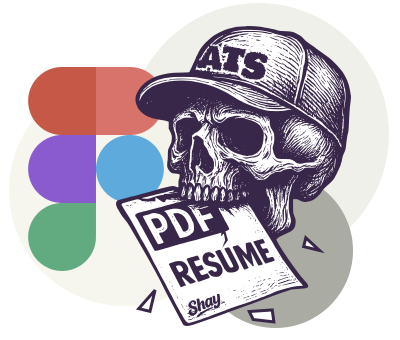
You design a beautiful CV in Figma. Perfect spacing, clean type, all the details right. Then you export it as a PDF and send it off. But ATS (Applicant Tracking Systems), the software that screens applications, can’t read it properly.
Text is exported as vectors. Fonts don’t embed. Reading order gets scrambled. File size bloats.
The result? Auto-rejected. No human ever sees it.
You think you’re getting ghosted but in reality… you’re just invisible.
Talent is everywhere right now. The market is flooded post-layoffs, and recruitment is unfortunately broken at most places. Your CV gets screened by bots before humans. Remove every barrier you can.
The solution: Get out of Figma
Build your CV in Google Docs or Word. Boring? Yes, maybe. But functional and ATS-friendly.
Having a snazzy looking CV is great if you want to stand-out… but only if you can do it without falling foul of the ATS. You can use the template below and make it your own, push the boundaries with your creativity – just make sure you go through the check-list and run some tests to make sure it all still works.
To make it easier, I’ve stripped down my own CV and turned it into a template you can use as a starting point:
Download the free CV template (.docx)
The template includes:
- Correct heading structure
- ATS-friendly formatting
- Guidance on what to include in each section
- Examples that work with screening software
Note: even with this template, the tips below still stand. You must test your CV, whether you create it from scratch, from a template, or even when you make updates.
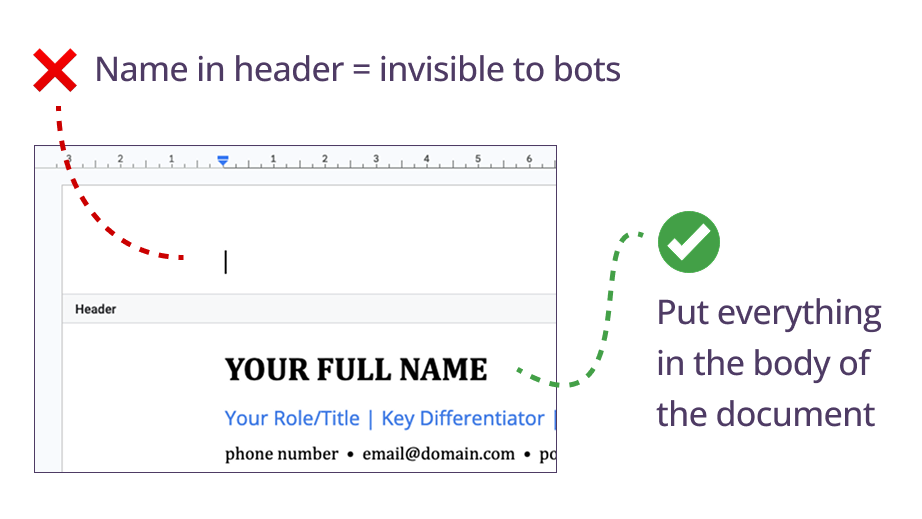
Critical: Use the body for all your important content
It’s common to want to use the page header to place your name and contact details. But don’t! Some ATS can’t parse the data in headers and footers or just intentionally ignores those spaces.
This is a very common mistake people make.
Just go into “page settings” in Word / Google Docs, and reduce the header height (usually 2.54pt, you can put it down to 1.25pt or something) to give your pages more room after add your name + contact details in at the top of the body area.
Common myths that’ll cost you
Let’s clear up some things you’ve probably heard:
“Creative CVs stand out”
Not to the bot screening you out. Save the creativity for your portfolio.
“PDFs are more professional”
PDFs are professional when created correctly. The problem isn’t the output (PDF) it’s how you build the source document.
If you’re using proper document tools (InDesign, Pages, Affinity Publisher), your PDF will likely be fine. These tools are built for this. But if you’re exporting from Figma or other design tools not meant for document creation, you’ll run into ATS issues.
Get it right at the source, then export. Whichever route you go, use the checklists below to help verify it’ll pass ATS.
“Two columns look better”
To humans, maybe. Bots read left to right, top to bottom. Multi-column layouts confuse the reading order.
“Keep it to one page”
Not for senior roles. Two pages are fine, even three if you must. Cramming everything into one makes it harder to scan for both software and people.
“Custom fonts show craft”
They show you don’t know how screening works. Arial is boring. It also gets read. Besides, there are plenty of ATS-safe fonts, I’ve provided a link to a deep-dive below that ranks the top 10 best fonts for CVs.
Test your CV before you send it
Run your CV through these free ATS checkers:
- Jobscan (compares your CV against job descriptions, gives match score)
- Resume Worded (free ATS score and suggestions)
- CVviz (checks ATS compatibility)
- TopResume (basic free scan)
- Plain text test: Copy your CV and paste it into Notepad. If the order is scrambled or text is missing, ATS can’t read it either. Do this regardless of which tool you used to build it.
Quick ATS checklist
Before you send your CV, make sure:
- You’re using standard fonts (Arial, Calibri, Open Sans. Deep dive on best fonts for CVs)
- Formatting is simple (no text boxes, tables, or columns)
- Section headings are standard (Experience, Education, Skills)
- All text is left-aligned
- You’re saving as .docx (not PDF unless specifically requested)
- File size is around 1MB (ideally under)
- You’ve used keywords from the job description naturally throughout
- Acronyms are spelled out on first use: “User Experience (UX)”
- Your CV matches your LinkedIn exactly (company names, job titles, dates). Mismatches trigger red flags
- You’ve tested it by copying into Notepad (if it’s readable there, ATS can read it)
Your portfolio can be world-class.
But if your CV can’t pass a robot test, no one will ever see it.
Don’t let your design tools work against you.
Good luck with the job hunt.
If you know someone stuck in the application black hole, share this with them.